Happenings Connect for Claude and ChatGPT
Run your association from Claude or ChatGPT
Connect the AI you already use to your Happenings page. Ask about sales, events and members, and review changes before approving them.
- Ready in 2 minutes
- Choose Claude or ChatGPT
- Nothing changes without your yes
New chat
How many are coming to the semester party?
Set up Happenings in ChatGPT
Use the separate ChatGPT ZIP. The Claude ZIP is for Claude. You need a Happenings account with access to your page.
Upload the ChatGPT plugin
- Download happenings-chatgpt-plugin.zip and keep it zipped.
- Open ChatGPT on the web → Plugins → + → Upload plugin archive. Select the ChatGPT ZIP and add the plugin.
- Open Happenings Connect, connect its MCP server with OAuth, and sign in to Happenings. Choose the pages ChatGPT may access.
- Install the plugin if prompted, then start a new chat and select Happenings Connect with @. Ask which pages you can manage.
Connect directly if upload fails
In ChatGPT Plugins, choose + → Add custom MCP server. Name it Happenings Connect, paste this server URL and choose OAuth with automatic client registration. Leave client ID and secret empty. Create the plugin, sign in to Happenings and choose your pages.
Address
https://api.happenings.social/mcpAvailability depends on your ChatGPT account and workspace permissions. If custom plugins are unavailable, ask your workspace administrator to enable them. You do not need to buy Claude.
OpenAI setup instructionsEmail members through Happenings
Prepare a member announcement inside Happenings. You review the subject and text before approving the send; member email addresses stay in Happenings.
Help me prepare an email to our members through Happenings. Show me the page, subject and full text first. Do not export member contact details or send anything until I approve the mailing.
Install in Claude
Do it on a computer, in Claude on the web or in the desktop app. You need a Happenings account with access to your page.
- 1
Download the plugin
Download happenings-plugin.zip and keep it as a ZIP file. No need to unzip it.
Download the ZIP file - 2
Upload it in Claude
Open Customize in the left menu, go to Plugins, press the black button in the top right corner and choose Upload plugin. Drop the ZIP file in.
- 3
Press Connect
Open the Happenings plugin, go to the Connectors tab and press Connect next to Happenings Connect. A sign-in window opens in your browser.
- 4
Sign in and pick your page
Sign in with your Happenings account, tick the pages Claude may work on and approve. That's it.
Start a new chat
Write like you would to a co-organiser. Try this to check that everything works.
Which Happenings pages can I access? Show my upcoming events without changing anything.
What you can use it for
The jobs associations ask for most. Copy a message, paste it into Claude and make it yours.
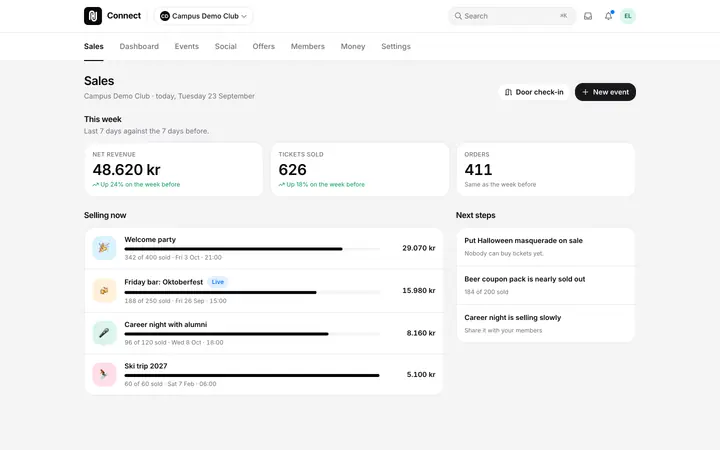
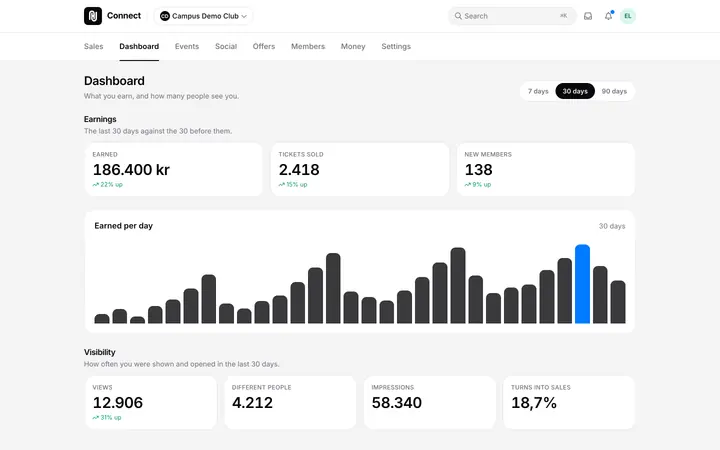
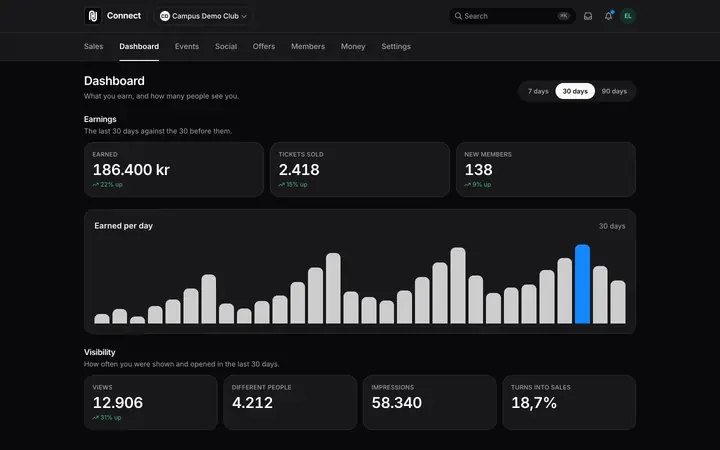
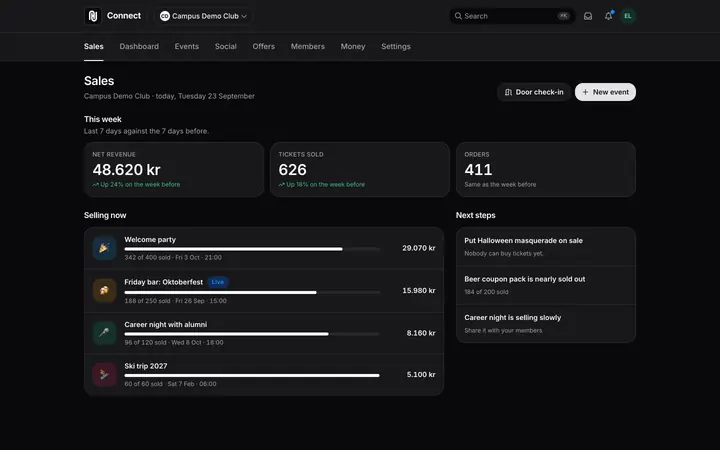 Sales
SalesSee how many are coming
Ticket sales, members and check-ins at a glance, no spreadsheet needed. Claude only reads and changes nothing.
Try writing
Read howHow many have bought a ticket for our next party, and how many of them are members?
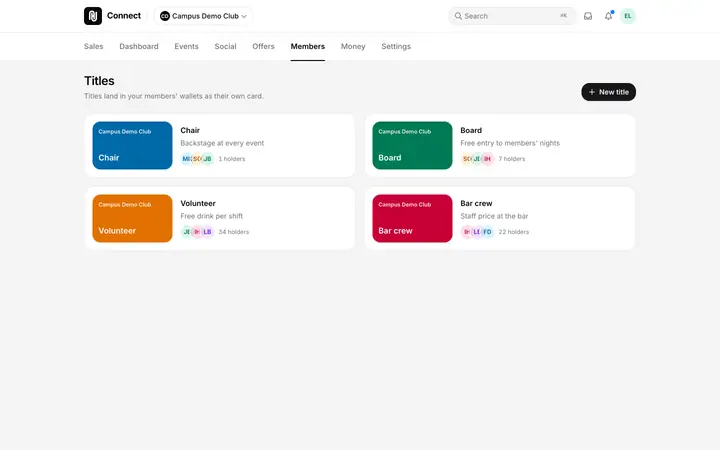
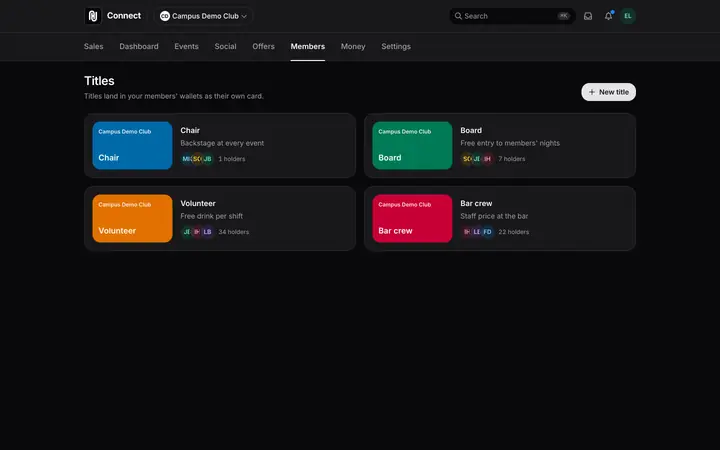 Digital cards
Give tutors and the board a card
Create a title like Tutor or Board. It shows up as a card in the wallet, can expire on its own and decides who gets what.
Try writing
Create a title called Tutor that expires on 1 February, and give me an invite link I can send to the tutors.
 Tickets
Free tickets for one group
A ticket type only people with a certain title can claim. Made for tutors, volunteers and the board.
Try writing
Read howMake a free ticket type for the semester party that only people with the Tutor title can claim. 120 tickets.
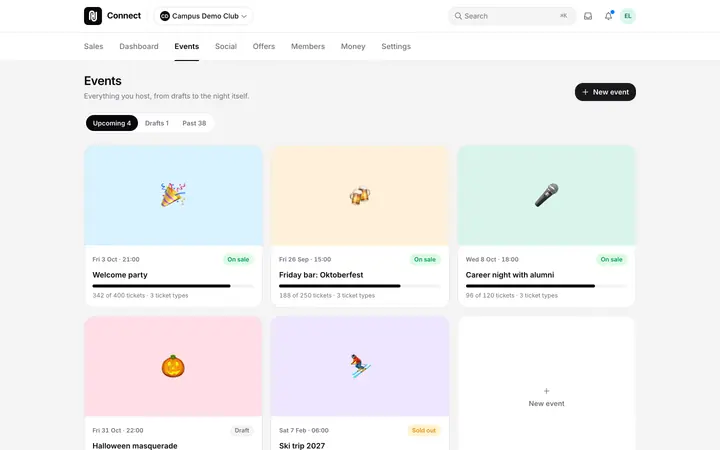
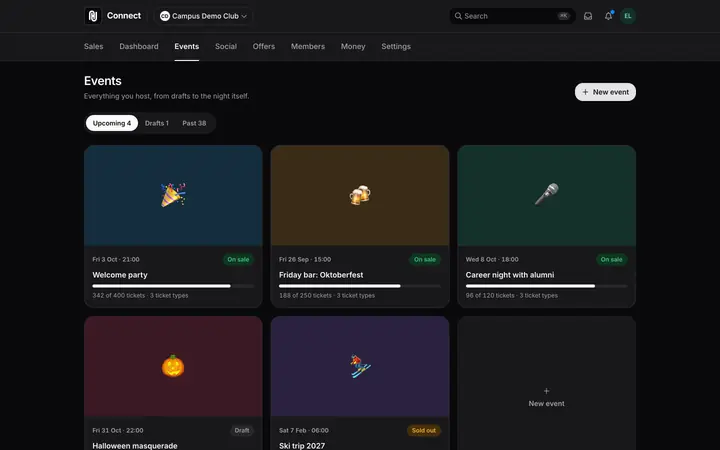 Events
Set up the next party in a minute
Describe the party in your own words. Claude makes a draft with tickets and prices that you check before it goes live.
Try writing
Read howCreate our Christmas party as a draft on Friday 4 December at 20:00 with 200 tickets at 120 kr. Show me the plan first.
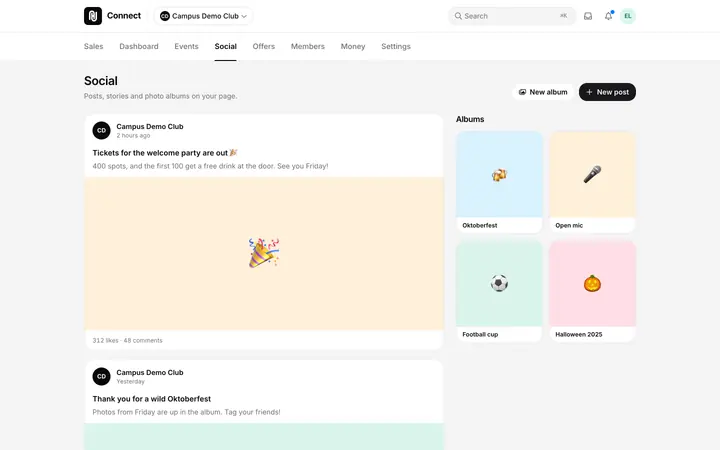
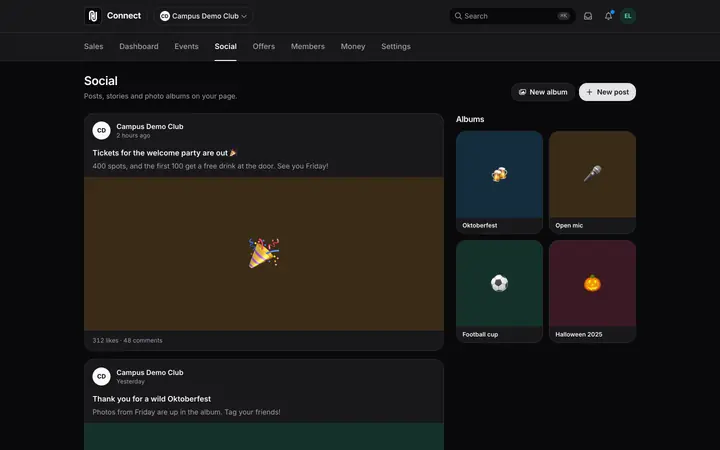 Posts
PostsWrite the post and share the link
Get a post for your page and a link that opens straight on the event. Share it on Instagram, where people already are.
Try writing
Read howWrite a short post about the semester party, and give me the event link so I can share it on Instagram.
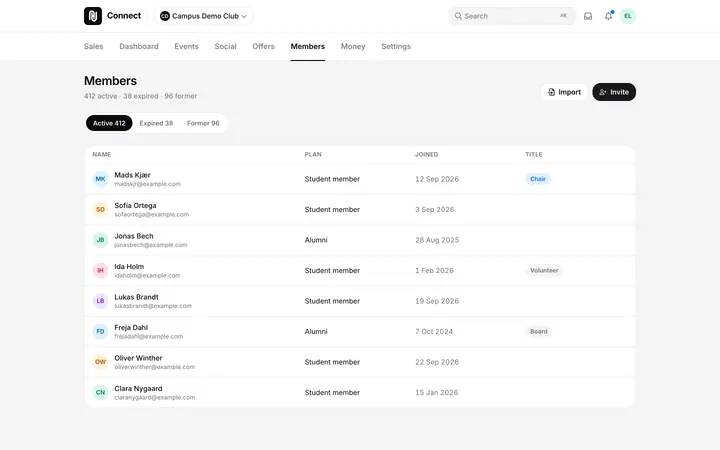
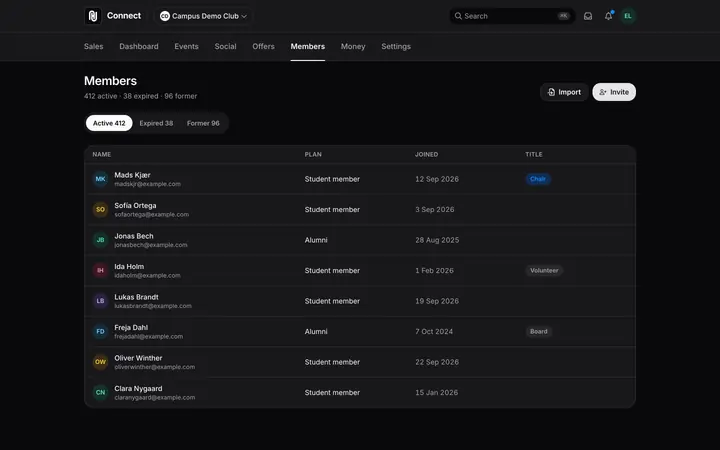 Door
DoorGet the door ready
Get the guest list, see who still has to check in and find a ticket when someone is at the door without one.
Try writing
Read howMake a guest list for Friday's party, and show me how many have checked in already.
You decide, all the way
Changes happen on your real page, so Claude asks first.
Preview first
Every change starts as a preview. Claude shows you what will happen and waits for your yes.
Your role sets the limit
Claude can only do what you can do in Connect, and only on the pages you picked.
Money stays in Connect
Bank accounts, payouts and fees can never be changed through Claude.
Disconnect any time
The connection ends after 30 days without use, and a year after you connected at the latest. You can also end it yourself.
Open AI settings
Using another AI?
The plugin is the easiest way in Claude. The connection also works without it, and in other AI apps.
Add the connection directly
- 1In Claude, open Customize and then Connectors.
- 2Press the plus and choose Add custom connector.
- 3Name it Happenings Connect and paste the address below.
Address
https://api.happenings.social/mcpClaude Code
claude mcp add --transport http happenings-connect https://api.happenings.social/mcpUnder the hood
Everything runs through the Happenings page CLI, the same commands page admins use. That gives Claude the whole toolbox with only four tools.
hap_helpShows the commands and their options. Runs nothing.
hap_readReads events, sales, orders, members and more. It changes nothing, and it refuses any command that would.
hap_runMakes a change on the page, like creating or publishing an event. It previews first, and Claude asks you before each one.
media_upload_widgetOpens an upload box for a photo, poster or logo, because Claude cannot pass a chat attachment on.
If something gets stuck
I can't see Plugins in Claude
My computer unzipped the file
The plugin is installed, but Claude can't see Happenings
A page is missing
Claude says it was refused
Claude asks me to sign in again
Claude keeps asking for permission
Ready to try it?
Happenings Group A/S runs the connection. Claude only gets what you ask for, from the pages you picked, and every command it runs is logged. Read our privacy policy